Monday, November 27, 2023

Protect yourself from cyber fraud threats


Loan fee scams: Beware of swindlers promising loans with implausibly low interest rates and demanding upfront fees for processing, documentation, or insurance. Generally, legitimate lenders deduct processing fees from the loan amount; therefore, never pay processing fees in advance, especially using unconventional payment methods such as gift cards or cryptocurrency.

Fake loan offers: Scammers may contact borrowers via email, text, or phone with enticing loan offers while requesting sensitive personal information. To avoid becoming a victim, you should only conduct business with reputable financial institutions and refrain from sharing sensitive information unless the lender's legitimacy has been verified. Legitimate lenders leverage automated data verification platforms to ensure the authenticity of loan offers.

Identity theft: Protect yourself from identity theft by monitoring your financial statements and credit reports regularly. Report promptly any unauthorised loans to your bank and credit bureaus to avoid repayment demands for loans you never took out.

Loan churning: Unscrupulous lenders may promote frequent loan refinancing, frequently with concealed fees. Understanding the terms and costs of refinancing can help you avoid unnecessary debt and financial stress. Partnering with transparent financial institutions that provide clear terms and conditions can safeguard against unnecessary financial burdens.

Guaranteed loan scams: Be sceptical of con artists who offer "guaranteed" loans without credit checks or income verification. Before extending a loan, legitimate lenders conduct comprehensive credit evaluations, so avoid loans that do not require documentation or credit reviews.

Stolen loan documents: Safeguard personal documents such as copies of your PAN card and salary slips to prevent impersonators from obtaining loans in your name. Regularly monitor financial statements for out-of-the-ordinary activity and destroy sensitive information prior to disposal. Genuine financial institutions conduct digital document verification to ensure the credentials presented are genuine, offering an additional layer of security.

Vigilance is key

Nowadays, protecting yourself from loan fraud requires unwavering vigilance. Verify the authenticity of lenders, scrutinise loan documents, and avoid upfront fees for loan approval. By staying informed and cautious, borrowers can mitigate the risks associated with cyber fraud and ensure their financial well-being in an increasingly interconnected world. 

By partnering with forward-thinking financial institutions that harness modern technological solutions, borrowers can minimise risks and ensure their financial well-being

Tuesday, June 13, 2023

Google Meet adds support for dedicated whiteboard cameras, like the Logitech Scribe


Use Companion Mode with Google Meet for hybrid learning

Important: Some features, such as hand raising, require specific Google Workspace editions. Learn more about Google Workspace editions.

You can use companion mode to join a Google Meet video meeting on a second screen. In Companion mode, your mic and video are turned off to avoid any audio feedback.

When there is a mix of participants who are remote or in meeting rooms (hybrid meetings), people in a meeting room don't have access to individually chat, upvote questions, or answer polls with meeting-room hardware or Nest Hub Max. Instead, you can use companion mode to improve participants collaboration.  

  • In meeting rooms— Join meetings with audio and video on meeting-room hardware or Google Nest Hub Max to speak or listen to remote participants. To share your screen or use chat, polls, Q&A, and host controls, use Companion mode on your laptop. 
  • When you're remote—Join a meeting with audio and video as normal.

Connect with Companion mode on your laptop

You can connect your laptop to a Google Meet meeting in Companion mode from a meeting invite or with a short link. 

From the meeting invite: 

  1. In a meeting invite, click Join.
  2. On the meeting landing page, under Other joining options, click Use Companion mode. 

Use a short link: 

  1. In your browser, enter g.co/companion.
  2. On the Meet home screen, select a meeting, or enter a meeting code.

Tips:

  • To avoid missing chat messages, connect with Companion mode at the beginning of the meeting. Messages sent before you connect aren't included in your chat stream.
  • If you plan to use chat during the meeting, remind meeting-room participants to connect with Companion mode.

Use Self-View to share your personal video tile with remote participants

If you’re in a meeting room and join with Companion mode, you can turn on Self-View with your laptop camera to share your personal video tile with others on the call. Audio isn’t shared and your personal video tile never shows as an active speaker. When you turn off your camera, the Self-View shows your avatar.

  1. Turn on Self-View: From the bottom of the Companion mode screen, click Turn on camera .
    • Turn off Self-View: click Turn off camera Camera.
    • By default, Self-View is always off and minimized.
  2. Change background and apply visual effects: From the bottom of the Companion mode screen, click More options More and then Apply visual effects .

Important: 

  • When video is on, your Self-View shows up to other Meet users, but does not show up on Google Meet hardware devices to users in a meeting room. 
  • Self-View only shows on Google Meet hardware devices when you raise your hand.

Present with Companion mode on your laptop

You can quickly share your laptop screen in Companion mode.  

From the meeting invite: 

  1. In a meeting invite, click Join.
  2. On the meeting landing page, click Present and then choose what to share.

Use a short link: 

  1. In your browser, enter g.co/present.
  2. On the Meet home screen, select a meeting  and then choose what to share.

Sunday, February 14, 2021

Dedicated Google Meet IP addresses for non-Google Workspace users traffic


Quick launch summary

In addition to the fixed IP range dedicated for Google Meet in Google Workspace domains, we’re now introducing a range of official, fixed IP addresses for non-Google Workspace users (users joining with personal Google Accounts or anonymously).

This will allow Google Workspace customers and their partners to better configure and optimize network and firewall access. It will help non-Google Workspace domains and organizations with users who aren’t signed into Google Accounts to identify video conference traffic.

The new IP range is already deployed. Google Meet will stop using the old IP address on March 1, 2021. As this change may interfere with previous network optimization, we recommend Google Workspace customers adopt these IP addresses as part of your firewall and network configuration.

Getting started

  • Google Workspace admins: Update your firewall if you want to apply specific network rules for non-Google Workspace Meet traffic. You can find those IP addresses and more information in the Help Center.
  • Non-Google Workspace admins: Update your firewall to allow the new Google Meet IP addresses. You can find those IP addresses and more information in the Help Center.
  • End users: No end-user impact.

Saturday, October 31, 2020

Replace your background in Google Meet

 You can now replace your background with an image in Google Meet. You can either use Google’s hand-picked images, which include office spaces, landscapes, and abstract backgrounds, or upload your own image.


Who’s impacted


End users

Why you’d use it


Custom backgrounds can help you show more of your personality, as well as help hide your surroundings.

Additional details

We recently launched the ability to filter out disruptive background noise and blur your background in Google Meet. Together, these features reduce audio and visual distractions, and help ensure more productive meetings.

Virtual backgrounds work directly within your browser and do not require an extension or any additional software. At launch, they’ll work on ChromeOS and on the Chrome browser on Windows and Mac desktop devices. Support on Meet mobile apps will be coming soon; we’ll announce on the Google Workspace Updates blog when they become available.

Getting started

Admins: At launch, there will be no admin control for this feature. Admin controls to select which organizational units can use custom and preset backgrounds for meetings they organize will be introduced later this year. We’ll announce on the Google Workspace Updates blog when they’re available.

End users: This feature is OFF by default. Visit our Help Center to learn more about how to change your background on Google Meet.


Thursday, October 22, 2020

Introducing data protection insights reports


What’s changing 

We’re creating reports with recommendations that will help customers proactively understand and protect sensitive content. The reports will show: 
  • How many files in your organization contain sensitive information. 
  • How many sensitive files in your organization have been shared externally. 
  • Insights into the type of sensitive information (e.g. credit card numbers, social security numbers, etc.) in those files. 
Note that a report will be proactively generated for Business Standard, Business Plus, Enterprise Essentials, Enterprise Standard, and Enterprise Plus customers on a periodic basis. They do not require any Data Loss Prevention (DLP) rules to be set up in the Admin console. You can turn off the report by going to Admin console > Data Protection > Data protection insights

An example of a Data Protection insight report 

Who’s impacted 

Admins 


Why it matters 

Protecting your company’s confidential data is critical. DLP supports this by giving you control over what users can share, and helps prevent the unintended exposure of sensitive information. 

These new reports will help you understand what sensitive information is stored in your organization, and can help you make more informed decisions to protect it. For customers new to DLP, a report can help you identify the types of sensitive content, such as credit card numbers and tax IDs, that you might want to prioritize establishing DLP policies for. For customers already using DLP, a report can help you identify data types that you may not have authored DLP policies for. 

Enterprise Standard and Enterprise Plus customers also have access to Google Workspace’s DLP systems, which can make it easier to implement chosen DLP policies and create alerts for ongoing monitoring of issues identified in the report. 


Getting started 

  • Admins: 
    • Reports will be produced periodically. When they’re created, links to the report will be sent by email, and an alert will be shown in the Admin console. You can also find the report in the Admin console at Security > Data protection
    • Reports will only be accessible by super admins and other admins with the View DLP rule privilege. 
    • You can turn off the report by going to Admin console > Data Protection > Data protection insights
    • Visit our Help Center to learn more about managing DLP insights reports.  
  • End users: No end user impact. 
An email which helps admins find and use the report 

Wednesday, October 21, 2020

Windows 10 20H2 is released, here are the new features

Windows 10

Microsoft is rolling out the next version of Windows 10 called "20H2" and the update is available for those who manually check for updates using the Settings app.

20H2 Update is not a huge release and it does not bring a major overall to key features of Windows 10, but Microsoft says this update comes with a lot of improvements that should improve overall user experience.

Microsoft is rolling out the feature update via an enablement package that allows you to update your system very quickly with a single reboot.

The features of Windows 10 version 20H2 are already included in Windows 10 May 2020 Update and enablement package is a "master switch" that would simply turn on dormant features, such as the new Start Menu.

To get the update via enablement package, Microsoft says users should be using at least the September 2020 cumulative updates. Once you've installed the cumulative updates, simply head to Settings Update & Security and begin the download by clicking 'Download & install now" button.

Here's a list of all some noticeable new features in this feature update

Theme-aware Start Menu

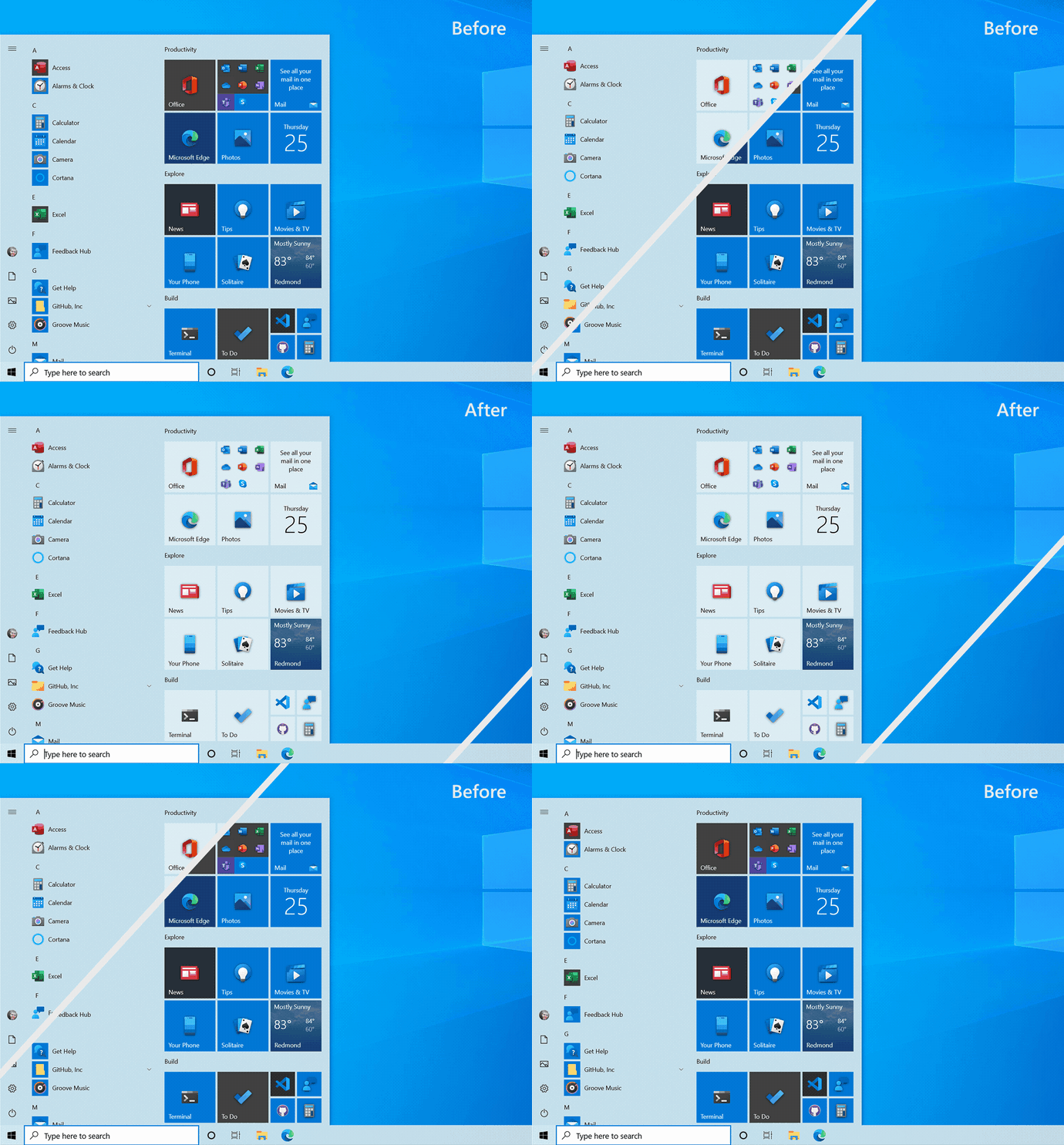
This feature update will ditch the colored backgrounds live tiles in the Start Menu for partially transparent theme-aware tiles. These new tiles are supposed to match the look and feel of the new Fluent Design system.

Start

"We are freshening up the Start menu with a more streamlined design that removes the solid color backplates behind the logos in the apps list and applies a uniform, partially transparent background to the tiles," Microsoft said.

Microsoft Edge (Chromium) is now built-in

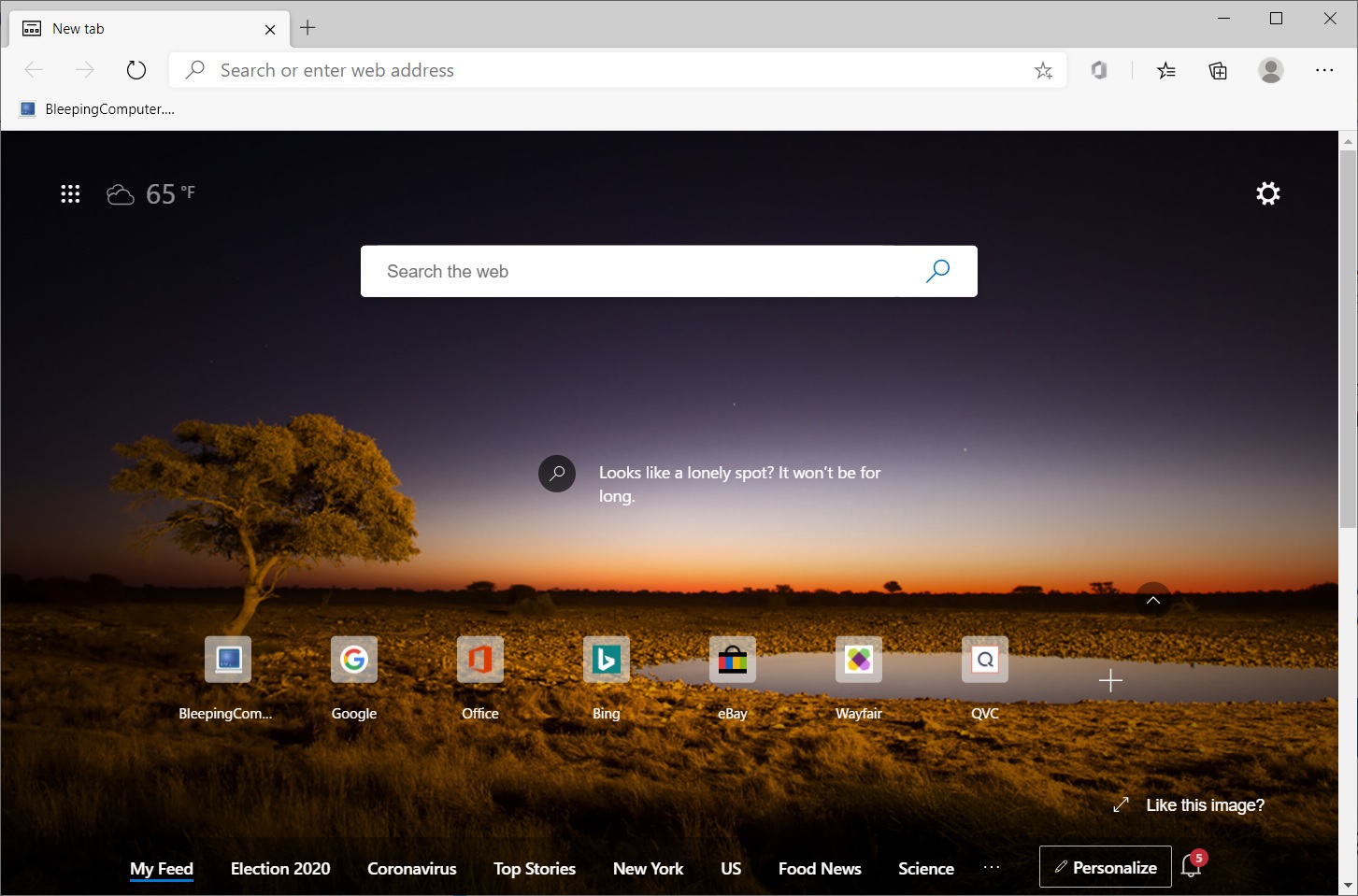
Microsoft Chromium edge is now the default web browser on Windows 10 and it replaces the classic UWP Edge. Chromium Edge will be pre-installed on all devices that will ship with October update or newer.

Edge

Alt + Tab improvements

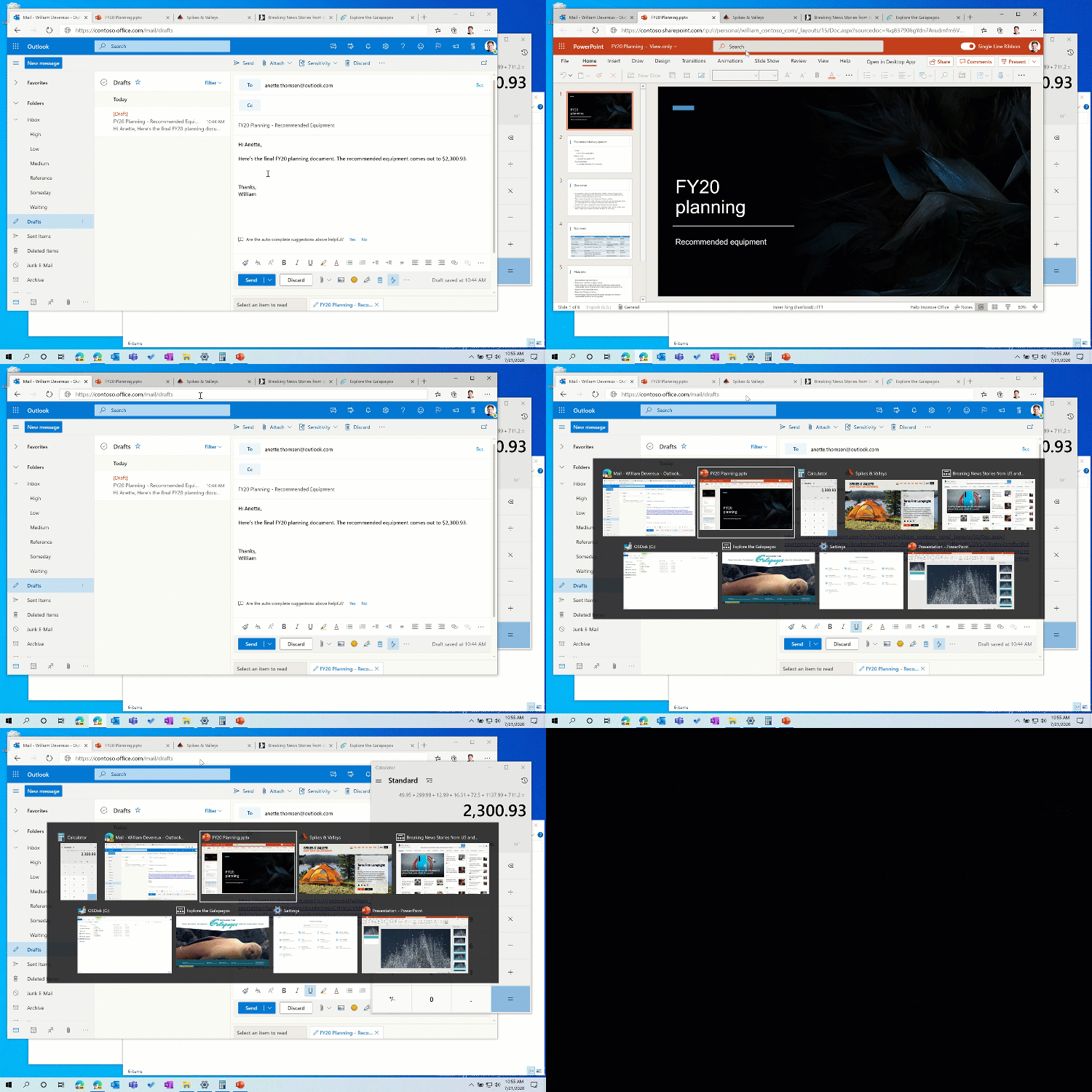
In May 2020 Update or older, Alt + Tab app switcher of Windows 10 allows you to switch between the open windows of your apps (UWP or Win32), but after the October Update, Microsoft says it will show your Edge tabs right alongside the app windows.

Edge Alt tab

This feature is supposed to make switching between open tabs as seamless as switching between open windows.

System settings About page is getting better

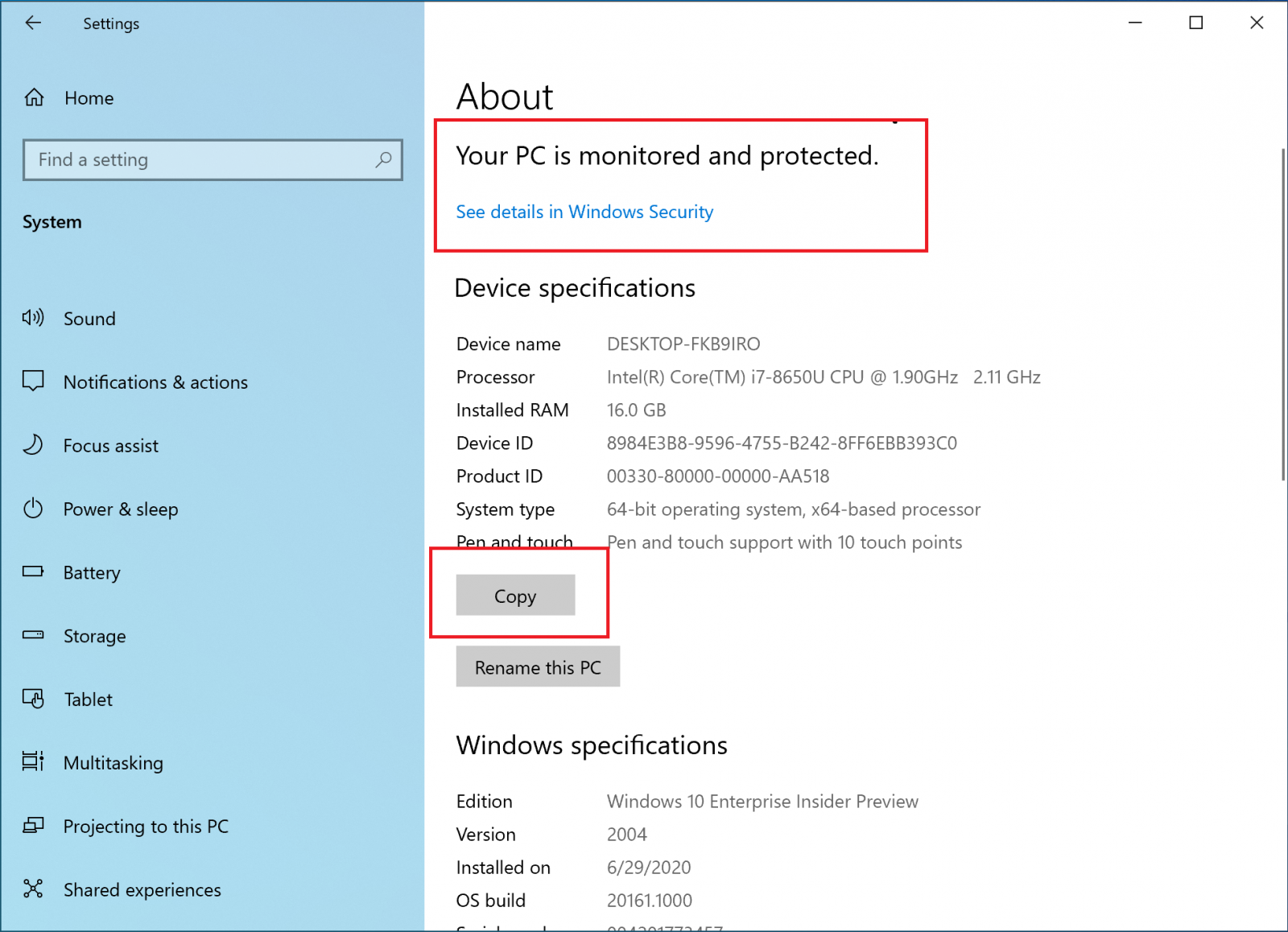
In 20H2 update, all your information found in Control Panel’s System applet will be migrated into the 'About' Settings page under Settings System About.

Settings

This new About page now allows you to copy your system information to the clipboard, which means that you can now easily share your information with Microsoft tech support for debugging.

Other improvements

  • Tablet experience for 2-in-1 devices: When you detach the keyboard on Surface Book-like devices, Microsoft's notification toast asking you to switch to tablet mode will no longer appear.
  • Refresh rate: You can now change your display refresh rate from Settings > System > Display > Advanced display settings.
  • Modern Device Management (MDM) improvements

Friday, October 16, 2020

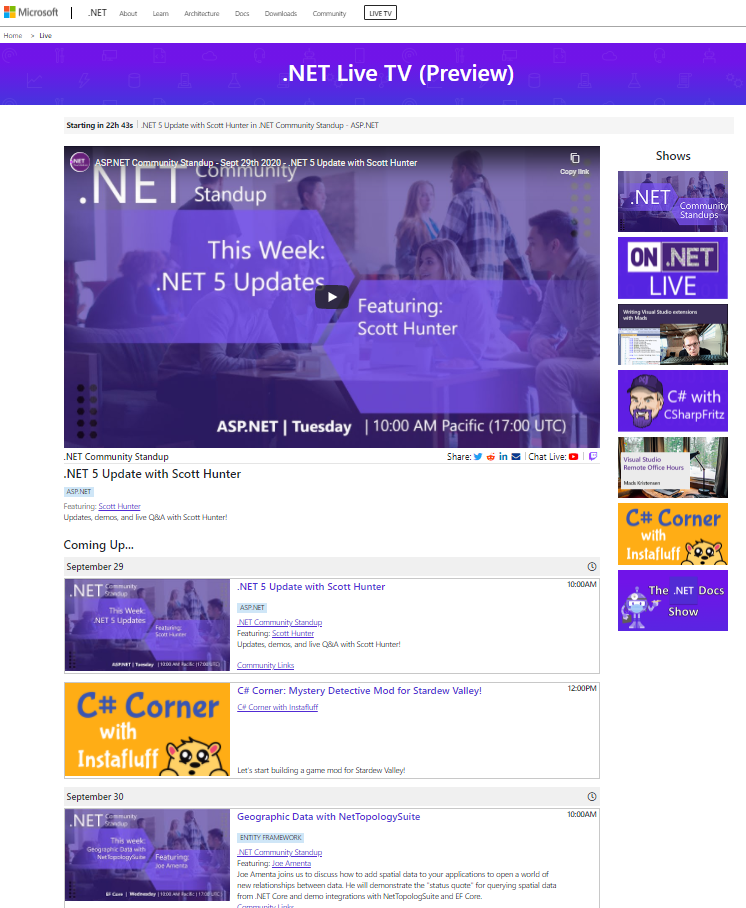
Introducing .NET Live TV – Daily Developer Live Streams

 Today, James accounce launching .NET Live TV, your one stop shop for all .NET and Visual Studio live streams across Twitch and YouTube. We are always looking for new ways to bring great content to the developer community and innovate in ways to interact with you in real-time. Live streaming gives us the opportunity to deliver more content where everyone can ask questions and interact with the product teams.

.NET Live Website

We started our journey several years ago with the .NET Community Standup series. It’s a weekly “behind the scenes” live stream that shows you what goes into building the runtimes, languages, frameworks, and tools we all love. As it grew, so did our dreams of delivering even more awesome .NET live stream content.

.NET Live TV takes things to a whole new level with the introduction of new shows and a new website. It is a single place to bookmark so you can stay up to date with live streams across several Twitch and YouTube channels and with a single click can join in the conversation.

Windows 10 Settings gets a modern Disk Management tool


Microsoft continues to migrate legacy Windows tools into modern versions found in the Windows 10 settings with the introduction of a new Disk Management tool.

Since Microsoft introduced its modern Settings interface in Windows 8, users have been left with a confusing mess of how to configure Windows settings.

Do they use the new modern Windows settings interface, old legacy tools, or the Control Panel to customize the operating system?

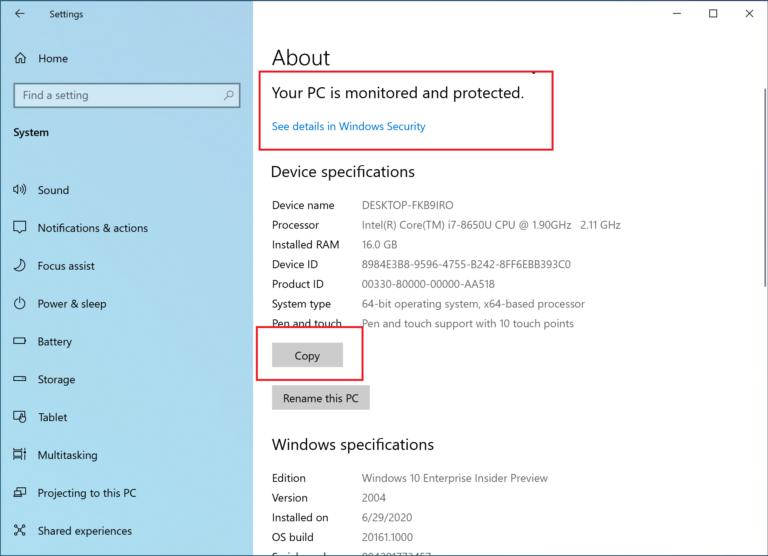
In July, Microsoft announced that they were migrating the widely-used System control panel into the modern Windows 10 About settings page.

Windows 10 About settings screen

Microsoft has also started testing redirecting Windows 10 users who opened the older System control panel to this new About page.

To BleepingComputer, this indicated that Microsoft ultimately wants to do away with the old legacy controls in the Control Panel and eventually move everything to the new modern Settings interface.

Windows 10 Settings gets a modern Disk Management tool

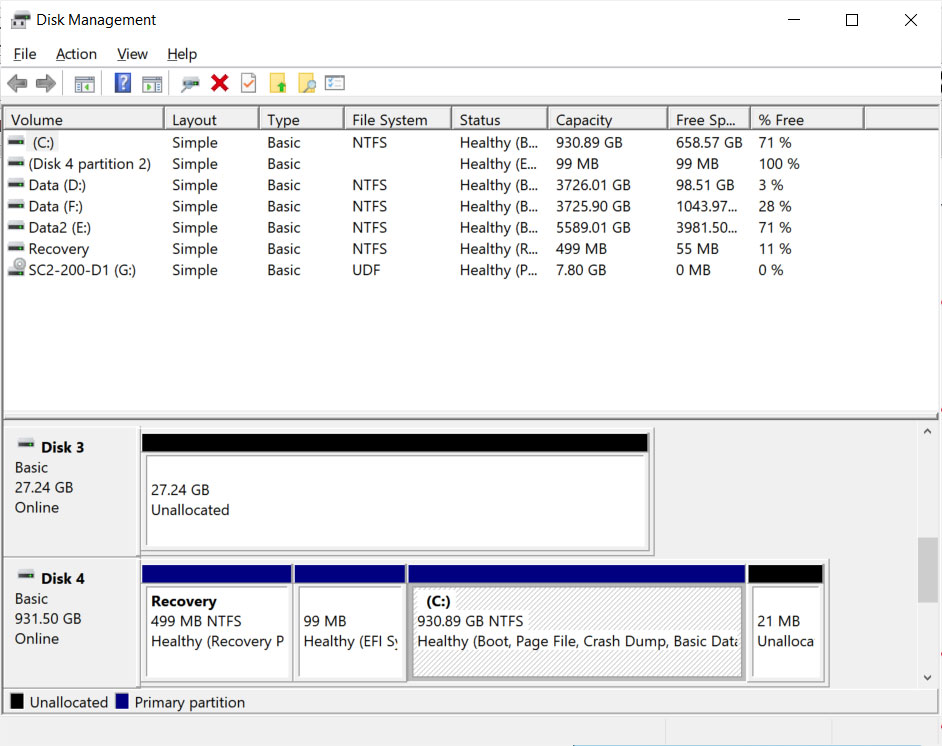
Since at least Windows 95, if not older, users have had access to the standalone Disk Management tool (diskmgmt.msc) that is used to manage the storage devices used by Windows.

Classic Disk Management MMC plugin

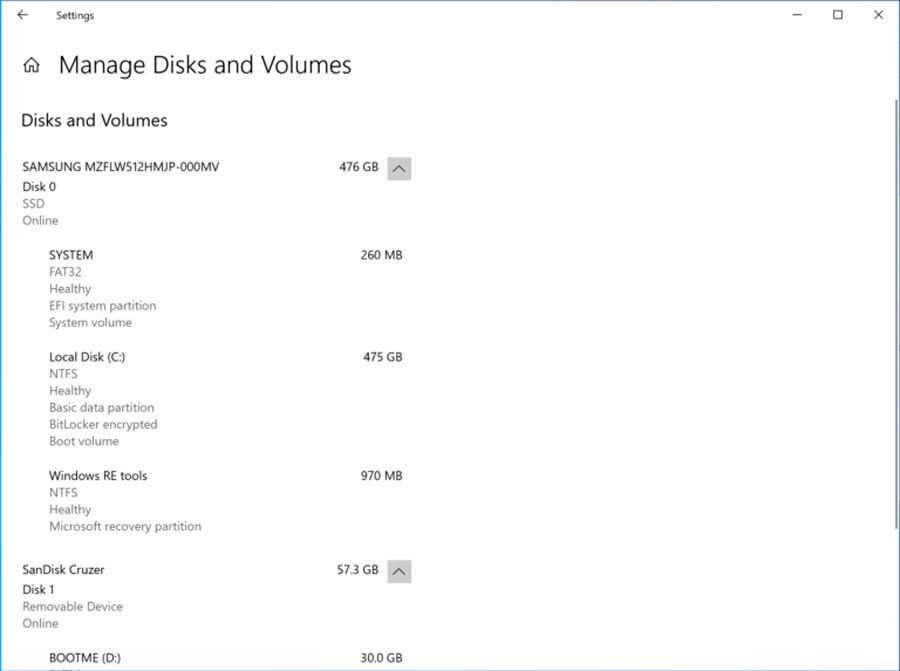
With today's release of Windows 10 Insider build 20197, Microsoft has now introduced a modern 'Manage Disks and Volumes' utility that has better integration with the Storage Spaces and Storage settings.

This new tool allows Windows users to view disk information, create and format volumes, and assign drive letters.

To access this new tool, you would go to Settings > System Storage and click on Manage Disks and Volumes.

New Manage Disks and Volumes settings

Microsoft has stated that this not currently replacing the existing Disk Management MMC tool, and Windows users can still use it if they wish.


How to Download the Windows 10 1909 ISO From Microsoft


Now that Microsoft has released Windows 10 1909, otherwise known as the November 2019 Update, ISO disk images for this new version are also available. As it is always a good practice to have the original media for the latest version of Windows 10 available, we will explain how you can download the Windows 10 1909 ISO directly from Microsoft.

For those nor familiar with an ISO, it is sector-by-sector copy of a DVD that is stored in a disk image file. This ISO file can then be written, or burned,  to another DVD to create a replica of the original, mounted as a drive letter in Windows, or extracted by a program like 7-Zip to access the files contained in it.

While the Windows 10 Media Creation Tool can be used to create Windows 10 media, this media is meant to be used to upgrade your PC and is customized towards that goal. A Windows 10 ISO, though, is the original media that can be used to install a variety of different versions of Windows 10 depending on your license.

Unfortunately, Microsoft does not normally offer a Windows 10 ISO, but using a trick you can still get it directly from Microsoft's site as explained below.

How to download a Windows 10 1909 ISO

Normally when you go to Microsoft's "Download Windows 10" page, you are only given the option to update via Windows Update or to download the Windows 10 Media Creation Tool.

Below we are going to explain a method that causes Microsoft to offer an ISO image file for Windows 10 1909 instead.

To download the Windows 10 1909 ISO, follow these steps:

  1. Go to Windows 10 download page in Chrome or the new Microsoft Edge.
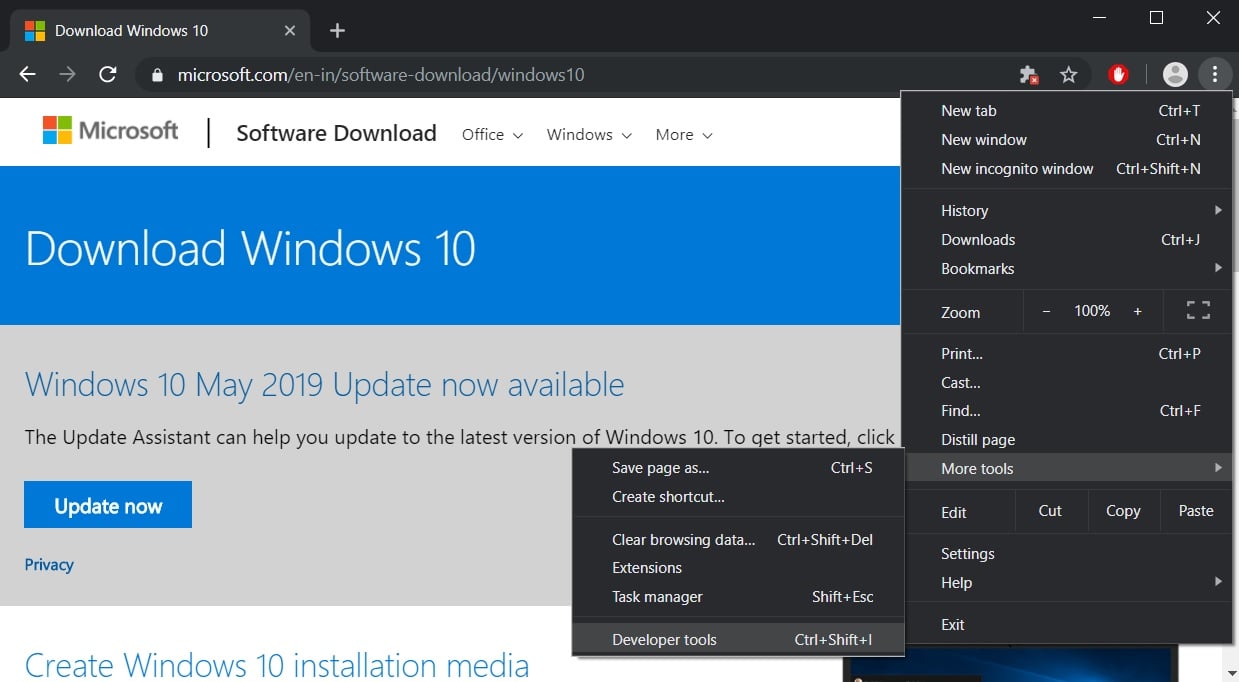
  2. Click on the Chrome menu, then More Tools, and then select Developer tools as shown below.

    Chrome-dev

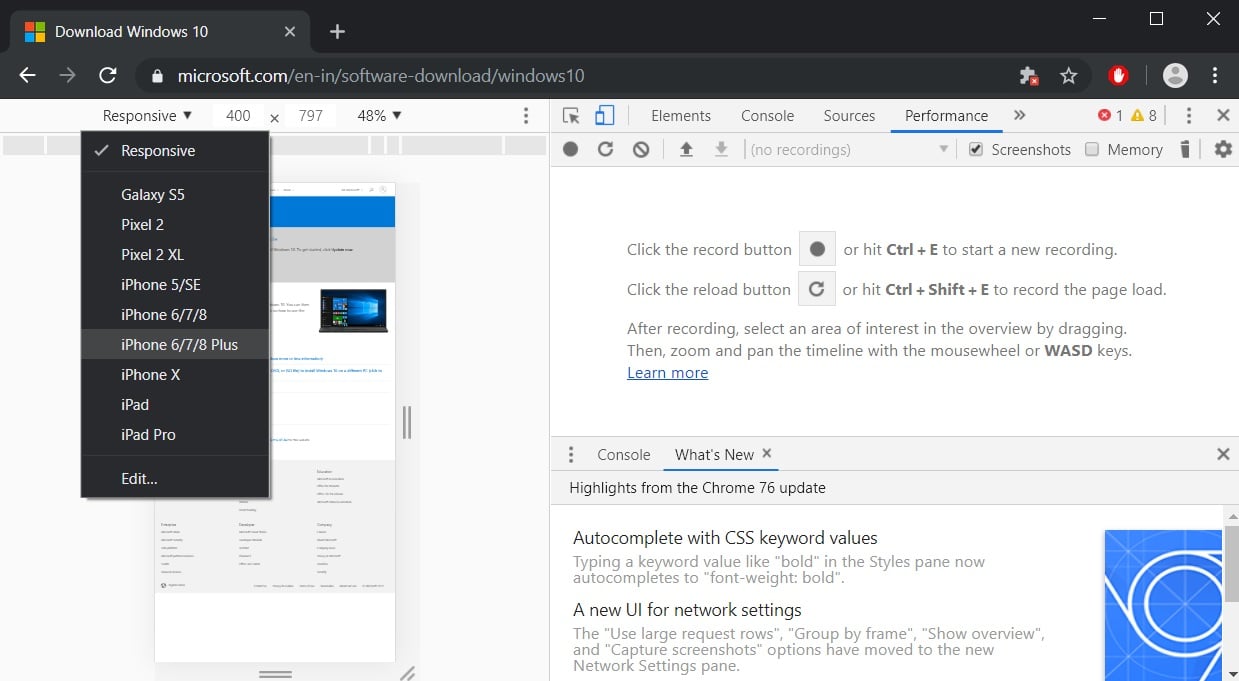
  3. Now press Ctrl + Shift + M to open the Device toolbar. This toolbar lets you force Chrome to impersonate another device such as a mobile phone or a tablet.

    Click on the menu that should show Responsive and select iPad or iPad Pro so that you have a larger screen to work with.

    Chrome emulation

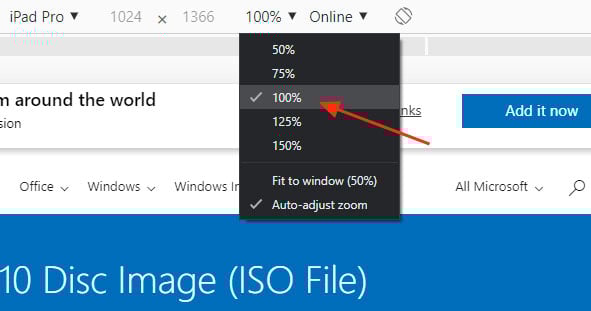
  4. When you select one of these devices, you should see the screen resize to reflect the size of the devices screen. At this point, I suggest you change the zoom to 100% as shown below.

    Change zoom level

  5. Now refresh the page in the browser by pressing the F5 key. Once the page refreshes, Microsoft's site will now offer you the Windows 10 ISO instead of the Media Creation Tool as seen below.

    ISO offered

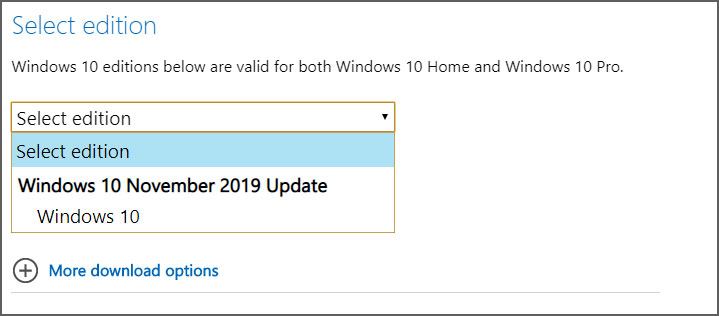
  6. Select the Windows 10 option under "Windows 10 November 2019 Update" and then select Confirm.
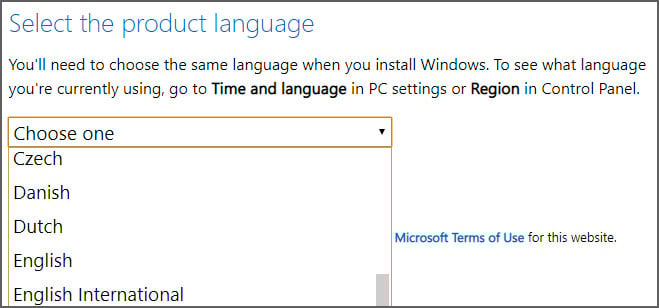
  7. After a few seconds, Microsoft's site will now ask you to select the language for your ISO.

    Select Language

    Select your language and press the Confirm button again.
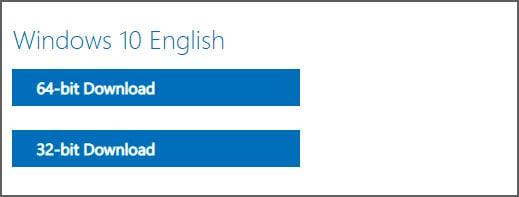
  8. Finally, you will be asked to either download the 32-bit or 64-bit ISO. When ready, click on one of these choices and the respective Windows 1909 ISO image will be downloaded.

    Select type

It should be noted that the above instructions work in any Chromium-based browser, not only Chrome or the new Edge.

What should you do with the ISO?

Now that you have downloaded the Windows 10 1909 ISO, you may be wondering what you should do with it.

As blank writable DVDs are fairly cheap, costing between $0.50 or $0.70 at Amazon when you buy them in a multi-pack, my suggestion is to burn the ISO onto a DVD and store it in a safe place. This way you have it available in case you need to use it in the future as an emergency repair disk or as Windows installation media.

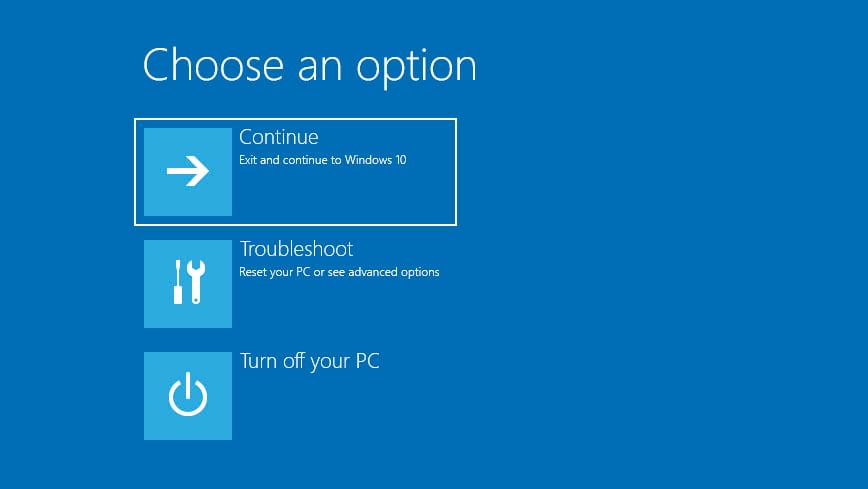
For example, if your computer is no longer able to boot due to an infection that disables the Windows 10 recovery environment, you can boot your computer using the Windows 10 installation media to repair your computer.

Windows 10 Repair Environment

As Microsoft releases new feature updates at least twice per year, it is suggested that you create new ISOs each time a new Windows 10 feature update is released.

Office 365 adds protection against downgrade and MITM attacks


Microsoft is working on adding SMTP MTA Strict Transport Security (MTA-STS) support to Exchange Online to ensure Office 365 customers' email communication security and integrity.

Once MTA-STS is available in Office 365 Exchange Online, emails sent by users via Exchange Online will only one delivered using connections with both authentication and encryption, protecting against both email interception and attacks.

Protection against MITM and downgrade attacks

MTA-STS strengthens Exchange Online email security and solves multiple SMTP security problems including the lack of support for secure protocols, expired TLS certificates, and certs not issued by trusted third parties or matching server domain names.

Given that mail servers will still deliver emails even though a properly secured TLS connection can’t be created, SMTP connections are exposed to various attacks including downgrade and man-in-the-middle attacks.

"[D]owngrade attacks are possible where the STARTTLS response can be deleted, thus rendering the message in clear text," Microsoft says. "Man-in-the-middle (MITM) attacks are also possible, whereby the message can be rerouted to an attacker’s server."

"MTA-STS (RFC8461) helps thwart such attacks by providing a mechanism for setting domain policies that specify whether the receiving domain supports TLS and what to do when TLS can’t be negotiated, for example stop the transmission," the company explains in a Microsoft 365 roadmap entry.

"Exchange Online (EXO) outbound mail flow now supports MTA-STS," Microsoft also adds.

Exchange Online SMTP MTA Strict Transport Security (MTA-STS) support is currently in development and the company is planning to make it generally available during December in all environments, for all Exchange Online users.

DNSSEC and DANE for SMTP also coming

Microsoft is also working on including support for the DNSSEC (Domain Name System Security Extensions) and DANE for SMTP (DNS-based Authentication of Named Entities) to Office 365 Exchange Online.

Support for the two SMTP standards will be added to both inbound and outbound mail, "specific to SMTP traffic between SMTP gateways" according to the Microsoft 365 roadmap [12] and this blog post.

According to Microsoft, after including support for the two SMTP security standards in Exchange Online:

  • DANE for SMTP will provide a more secure method for email transport. DANE uses the presence of DNS TLSA resource records to securely signal TLS support to ensure sending servers can successfully authenticate legitimate receiving email servers. This makes the secure connection resistant to downgrade and MITM attacks.
  • DNSSEC works by digitally signing records for DNS lookup using public key cryptography. This ensures that the received DNS records have not been tampered with and are authentic. 


Google’s Keep note-taking app is getting a new feature courtesy of Android 14 that’s a huge time-saver, even if Samsung got there first

  There’s a certain balance that needs to be achieved with lock screen functionality. You can’t give away too much because of, well, securit...