Sunday, October 29, 2017

WhatsApp recall message aka delete for everyone now available in India, here is how it works

The recall message, officially called Delete For Everyone, is now available to most WhatsApp users in India. The feature that started rolling out on Friday morning is now seemingly reaching almost everyone. And the best bit about it is that you don't have to necessarily update WhatsApp to get it.


Over here at India Today Tech we tested the feature on Version 2.17.395, which is new but not as fresh as beta version 2.17.399 or 2.17.400, and Delete For Everyone works fine. It seems that the feature has been enabled by WhatsApp on server and it doesn't matter even if you are running an older -- but hopefully not years old -- version of the chat app.


The feature, as its name suggests, enables a user to "recall a message" by deleting it. In other words, as soon as you delete a message in a chat window, it also gets deleted from the phone of the person who had received. However, there is a limit to it. You can only delete the message within 7 minutes of sending it. If you try to delete a message after 7 minutes, you won't be offered option to delete form everyone's phone. Here is how the feature works.


-- In a chat window select the message or messages that you want to delete. It is important that the messages must have been sent in the last seven minutes.


-- After selecting the message, tap on the recycle bin (the round bin) on the top of the chat window.


-- You will be presented with three options: cancel will send you back to the chat window, delete for me will delete the message from your phone, delete for everyone will delete the message from everyone's phone.


-- Once a message is deleted, instead of the message you will get to see "This message was deleted" in grey text. If you have deleted the message, then you will see "You deleted the message".


The feature is pretty cool. But do understand that it has some limitations. It will allow users to delete a message that they wrongly sent to some chat window or something that they sent but immediately regretted. It won't allow you to delete a message that the drunk you sent in the night in morning when you are sober and realised your mistake after the re-reading the message. As noted earlier, WhatsApp users will only have a window of 7 minutes to recall or delete a message.

It is also worth noting that you won't be able to delete any message that you forwarded, or in other words a message that is in quotes. It is also important to realise that even if you deleted a message that doesn't mean it wasn't read. It is possible that before you deleted a message, it was read, and it is also possible that it was screenshoted.


Saturday, October 21, 2017

Too many WhatsApp images, videos making your phone slow and full? Here is a fix

WhatsApp has over 1 billion daily active users today. The increasing popularity of the chat app has made it synonymous to the messaging. SMS sounds old and obsolete now. These days SMS box is opened only to view OTPs, telecom's promotional messages and your bank transaction details. WhatsApp has become an indispensible part of our lives. The app has made it fast and easier to stay connected with our friends.


However, it can be little annoying at times when the chat app automatically download all those stupid memes, audio files, videos and photos. This not just makes the phone's gallery look like a complete mess, it also eats up you mobile data. Here is a fix to this to this problem.


For Android phones:


If you are an Android user, open your WhatsApp, go to Settings>Data and storage usage>Media auto download. Now uncheck all the three boxes under the Media auto download- when using mobile data, when connected on Wifi and when roaming.


For iPhones:


iPhone users can also de-clutter their phone from annoying audio file, videos and photos.  Open WhatsApp>Settings>Data and storage usage.


Now check the Never box for photos, videos, audio and documents.


Low data usage for WhatsApp calls


WhatsApp also has an option to lower the amount of data it uses during WhatsApp voice calls. Open WhatsApp>Settings>Data and storage usage> Low data usage.


Few quick points to  save mobile data and phone storage when using the WhatsApp:


-- Stop auto-download of heavy files. Videos are entertaining but hog a lot of space on your phone. You can always set the auto-download for such videos when on WiFi.


-- Allow chat back up but only on WiFi. WhatsApp stores all your text chats and images. While this is an important feature as it allows you to retrieve your photos later from Cloud, backing up on mobile data can eat up your mobile data. So try doing it only on WiFi.


-- WhatsApp has an option where you can view your contacts and how much space each is taking. Go to WhatsApp> Storage and data usage>Storage usage.


Now you will see all your recent chats along with the space each is consuming on your phone. Select the chat>Manage messages>Clear messages.


Thursday, October 19, 2017

Intel moves towards production quantum computing with new 17-qubit chip

Intel’s quantum computing efforts have yielded a new 17-qubit chip, which the company has just delivered to its partner in that field, QuTech in the Netherlands. It’s not a major advance in the actual computing power or applications — those are still in very early days — but it’s a step toward production systems that can be ordered and delivered to spec rather than experimental ones that live in a physics lab somewhere.
Intel’s celebration of this particular chip is a bit arbitrary; 17 isn’t some magic number in the quantum world, nor does this chip do any special tricks other quantum computer systems can’t. Intel is just happy that its history and undeniable expertise in designing and fabricating chips and architectures is paying off in a new phase of computing.
I chatted with Intel’s director of quantum hardware, Jim Clarke, about the new system.

The test chip itself (the gold ports aren’t the qubits themselves, obviously)
“We’re relying on our expertise in hardcore engineering,” he said. “We’re working on all parts of the compute stack: the chip, the control electronics, the system architecture, the algorithm.”
It’s not quite like popping out a new Core processor every year, but there’s plenty of overlap.
“Our infrastructure allows us to adapt the materials and the package,” Clarke said. “If you think of a material that might be good for a qubit chip, Intel likely already has a mature process for that material or at least experience with it.”
That isn’t easy when the field of computing they’re attempting to enter is largely theoretical. That’s why partners like QuTech, a research institute under TU Delft, are essential. Intel isn’t short on big brains, but a dedicated facility under a major technical university is likely more fertile ground for this kind of bleeding-edge work.
The basic relationship is that Intel makes the chips, and QuTech tests them with the latest algorithms, models, and instruments. They turn around and say something like “that was great, but we’ll need at least 14 qubits to do this next thing, and we saw a lot of interference under such and such conditions.” Intel jots it down and a few months later (there’s no set timeline), out comes a new one, and the cycle repeats.
I’m simplifying, of course, because I don’t know the details of all this quantum tomfoolery (who can, really?), but that’s a powerful cycle to nurture.
The results so far let Intel boast of a chip that, thanks to the company’s manufacturing prowess and the work by QuTech, has considerably improved in reliability and performance over the last two years, while the architecture, system infrastructure (such as interconnects and testing methods) and so on have evolved alongside.
Of course, these amazing quantum computers still don’t really do anything yet — and they have to operate at around 20 thousandths of a degree above absolute zero. But the first problem is more exciting than limiting (the potential of these machines, theoretically, is enormous), and the second one, to my surprise, isn’t really a big deal any more.
Turns out (perhaps you knew, but I didn’t) that you can package a multi-qubit quantum computing system, cooled to the millikelvin level, in an enclosure the size of an oil drum.
There’s a long way to go in the quantum computing world, but it’s a no-brainer for companies like Intel to bet on the concept; its billions of dollars in infrastructure serve excellently for collateral.

Tuesday, October 17, 2017

UNDERSTANDING SOFTWARE-DEFINED NETWORKING IN WINDOWS SERVER 2016

It’s official: software-defined networking (SDN) is here to stay. Who wouldn’t want physical and virtual network devices able to be centrally configured and managed? Here, we explain the new SDN features in Windows Server 2016 and how to understand and use these virtualization technologies.
What is software-defined networking?
To understand the benefits of software-defined networking in Windows Server 2016, it’s first important to know what it actually is.
Software-defined networking allows you to access switches and routers that would usually use closed, proprietary firmware by applying globally aware software control. Essentially, both physical and virtual network devices in your datacenter, like routers and gateways, can be configured and managed centrally.
SDN infrastructure includes virtual network elements such as Hyper-V Virtual Switch, network virtualization, and RAS Gateway. Of course, you can still use physical devices, but as long as they have SDN compatibility, there can be a deeper integration between the virtual and physical networks.
This is possible because “the network planes — the management, control, and data planes — are no longer bound to the network devices themselves, but are abstracted for use by other entities, such as datacenter management software like System Center 2016.”
Software-defined networking lets you automate and centralize the management of your datacenter network. So, the main benefits of SDN are:
Abstracting applications and workloads, providing virtual abstractions for physical network elements like IP addresses, and load balancers. This is accomplished by virtualizing the network and is non-disruptive.

The possibility of centrally defining and managing both physical and virtual networks and the traffic flow between them.

Move workloads across virtual or physical networks and deploy new workloads while implementing consistent network policies.

SDN technologies in Windows Server 2016
Network Controller

This “centralized, programmable pointof automation to manage, configure, monitor, and troubleshoot both virtual and physical network infrastructure in your datacenter” is new in Windows Server 2016.
This scalable service allows users to make network infrastructure configurations automatic instead of manual setting devices and services on your network. It provides you with two application programming interfaces (API): the Southbound API and the Northbound API.
The Southbound API lets Network Controller communicate with the network, while the Northbound API lets you communicate with Network Controller.
Windows Server 2016 allows you to use a management application, Windows PowerShell, or the Representational State Transfer (REST) API to use Network Controller.
From there, according to Microsoft, you can manage Hyper-V VMs and virtual switches, physical network switches and routers, firewall software, VPN gateways including Remote Access Service (RAS) multitenant gateways, and load balancers with Network Controller.
Hyper-V Network Virtualization
As evidenced by its name, Hyper-V Network Virtualization uses virtual networks to help you abstract your applications and workloads from the physical network. This was introduced in Windows Server 2012.
Virtual networks are very popular today and are compatible with virtual Local Area Networks (VLANs). Additionally, they give users the ability to have isolation even while running on a shared physical network infrastructure, utilizing the available resources.
You have the possibility of setting up virtual networks on existing networking gear, as well as deploying and migrating tenant workloads across three clouds — the service-provider cloud, the private cloud, or the Microsoft Azure public cloud.
Hyper-V Virtual Switch
Hyper-V Virtual Switch is available in Hyper-V Manager after you install the Hyper-V server role. It’s a software-based layer-2 Ethernet network switch that allows you to connect virtual machines to both virtual networks and the physical network. Additionally, it “provides policy enforcement for security, isolation, and service levels.”
In Windows Server 2016, you’re also able to deploy Switch Embedded Teaming (SET) and Remote Direct Memory Access (RDMA).
Internal DNS Service (iDNS)
As you may know, hosted VMs and applications need DNS to communicate among their networks and external resources on the Internet. Using iDNS on Windows Server 2016 allows you to “provide tenants with DNS name resolution services for their isolated, local name space, and for Internet resources.”
This helps protect the server from malicious activities on tenant networks because there is no way to access the iDNS service without the iDNS proxy.
Network Function Virtualization
Many functions that were previously performed by hardware appliances are quickly becoming virtualized. Microsoft offers many Network Function Virtualization technologies in Windows Server 2016, including:
Software Load Balancer (SLB) and Network Address Translation (NAT) to help distribute network traffic equally among virtual network resources.

Datacenter Firewall allows you to apply firewall policies at the VM interface level or at the subnet level by providing granular access control lists (ACLs).

RAS Gateway to bridge traffic between virtual networks and nonvirtualized networks.

Remote Direct Memory Access (RDMA) and Switch Embedded Teaming (SET)
Windows Server 2016 gives you the possibility of using fewer network adapters when using RDMA and SET simultaneously by enabling RDMA on network adapters that are bound to a Hyper-V Virtual Switch with or without SET.
SET, an alternative NIC Teamingsolution that integrates some of its functionality into the Hyper-V Virtual Switch, lets you group one to eight physical Ethernet network adapters into one of more software-based virtual network adapters.
All of the SET member network adapters have to be in the same physical Hyper-V host to be placed in a team. “These virtual network adapters,” according to Microsoft, “provide fast performance and fault tolerance in the event of a network adapter failure.”
RAS Gateway for SDN
Using RAS Gateway in Windows Server 2016, you can route network trafficbetween the physical network and VM network resources, not worrying about where the resources are located. It is possible to route the network traffic at numerous physical locations over the Internet and virtual networks.
In Microsoft’s own words, it’s “a software-based, multitenant, Border Gateway Protocol (BGP) capable router in Windows Server 2016 that is designed for Cloud Service Providers (CSPs) and Enterprises that host multiple tenant virtual networks using Hyper-V Network Virtualization” meant to give you many choices of gateway infrastructure.
Software Load Balancing (SLB)
As stated in the “Network Function Virtualization” section, SLBs help distribute network traffic equally among virtual network resources. The Windows Server SLB, specifically, uses multiple servers for hosting the same workload to help give high availability and scalability.
Windows Server Containers
Containers are a popular operating system virtualization method that separates applications or services from other services that are running on the same container host. They function in a way that is similar to virtual machines when speaking of networking.
Every container has a “virtual network adapter which is connected to a virtual switch” where inbound and outbound traffic can go. Isolation is guaranteed through the network compartment that is created for the container when it’s installed.
The containers on Windows Server are able to be isolated because they each have their own view of the operating system, processes, file system, registry, and IP addresses. Windows Server 2016 now allows users to connect Windows Server containers to virtual networks.

Tuesday, October 3, 2017

New features in Google’s Contacts app on Android

Changes to the Contact view
  • Large photos are back: A popular request from G Suite users, we’ll now display a larger, more vibrant contact photo.
  • Action buttons under the photo make it easier to connect: Under the contact’s name, you’ll now see new buttons to call, text, video chat or email that contact. Additionally, if there’s at least one street address in the contact’s info, a Directions button will appear.
  • Directory card shows directory profile information: In this card, you’ll see things like the contact’s job title, work phone number, manager name, and office location.


Changes to Suggestions
  • Suggested contacts to add: New in this release, you’ll see suggestions to add contacts you frequently communicate with across Google’s products. These appear under the “Add people you contact often” summary card.

  • Merge all duplicates: The duplicates suggestion view now has a “MERGE ALL” button which allows you to accept all duplicates suggestions at once.

Customized “Contacts” view
Lastly, you can now customize the “Contacts” list view to show just the labels you want. This is accessed via a new menu item in the main list screen called “Customize view.” This feature was available in previous releases for the “All contacts” list view, but it has now been made available for individual accounts as well.

Monday, September 18, 2017

Google Data Calendar Resource API shutting down on November 15th, 2017

In December 2015, we announced that we were replacing the Google Data (GDATA) Calendar Resource API with a new Calendar Resource API that’s part of the Admin SDK’s Directory API. Originally scheduled for January 2017, the formal shutdown of the GDATA Calendar Resource API will now take place on November 15th, 2017.

If you’re using an application that uses the old GDATA Calendar Resource API, or if you’ve used this API directly in your code, please consider switching to the latest version of the apps (after consulting the app developer) or update your code to use the new Calendar Resource API.

Thursday, June 15, 2017

Backup and Sync from Google available soon

On June 28th, 2017, we will launch Backup and Sync from Google, a tool intended to help everyday users back up files and photos from their computers, so they’re safe and accessible from anywhere. Backup and Sync is the latest version of Google Drive for Mac/PC, which is now integrated with the Google Photos desktop uploader. As such, it will respect any current Drive for Mac/PC settings in the Admin console.


Backup and Sync is primarily intended for consumer users. We recommend that our G Suite customers continue to use Drive for Mac/PC until our new enterprise-focused solution, Drive File Stream (currently in EAP), is made generally available to all G Suite Basic, Business, Enterprise, Education, and Nonprofit domains later this year. Drive File Stream will allow users to access huge corporate data sets without taking up the equivalent space on their hard drives.

With that in mind, we will not automatically upgrade G Suite users from Drive for Mac/PC to Backup and Sync at this time. If you currently allow your users to install Drive for Mac/PC on their own computers, they will be able to download and upgrade to Backup and Sync starting on Wednesday, June 28th. If you don’t currently allow Google Drive for Mac/PC in your organization, your users won’t be able to use Backup and Sync with their G Suite accounts.

For more details, check out the resources below starting on June 28th. If you’re interested in trying Drive File Stream, sign up for the Early Adopter Program (EAP) today.

Launch Details
Release track:
Available for download starting on June 28th, 2017

Tuesday, June 6, 2017

Visualize data instantly with machine learning in Google Sheets

Sorting through rows and rows of data in a spreadsheet can be overwhelming. That’s why today, we’re rolling out new features in Sheets that make it even easier for you to visualize and share your data, and find insights your teams can act on.

Ask and you shall receive → Sheets can build charts for you

Explore in Sheets, powered by machine intelligence, helps teams gain insights from data, instantly. Simply ask questions—in words, not formulas—to quickly analyze your data. For example, you can ask “what is the distribution of products sold?” or “what are average sales on Sundays?” and Explore will help you find the answers.

Now, we’re using the same powerful technology in Explore to make visualizing data even more effortless. If you don’t see the chart you need, just ask. Instead of manually building charts, ask Explore to do it by typing in “histogram of 2017 customer ratings” or “bar chart for ice cream sales.” Less time spent building charts means more time acting on new insights.


Instantly sync your data from Sheets → Docs or Slides

Whether you’re preparing a client presentation or sharing sales forecasts, keeping data up-to-date can be time-consuming, especially if you need to update charts or tables in multiple sources. This is why we made it easier to programmatically update charts in Docs and Slides last year.

Now, we’re making it simple to keep tables updated, too. Just copy and paste data from Sheets to Docs or Slides and tap the “update” button to sync your data.


Even more Sheets updates

We’re constantly looking for ways to improve our customers’ experience in Sheets. Based on your feedback, we’re rolling out more updates today to help teams get work done faster:

  • Keyboard shortcuts: Change default shortcuts in your browser to the same spreadsheet shortcuts you’re already used to. For example, delete a row quickly by using “Ctrl+-.”
  • Upgraded printing experience: Preview Sheet data in today’s new print interface. Adjust margins, select scale and alignment options or repeat frozen rows and columns before you print your work.
  • Powerful new chart editing experience: Create and edit charts in a new, improved sidebar. Choose from custom colors in charts or add additional trendlines to model data. You can also create more chart types, like 3D charts. This is now also available for iPhones and iPads.
  • More spreadsheet functions: We added new functions to help you find insights, bringing the total function count in Sheets to more than 400. Try “SORTN,” a function unique to Sheets, which can show you the top three orders or best-performing months in a sales record spreadsheet. Sheets also supports statistical functions like “GAMMADIST,” “F.TEST” and “CHISQ.INV.RT.”
  • Increased support for charts in the Sheets API: Use the API to programmatically generate most charts with support for dozens of new operations.

These new features in Sheets are rolling out starting today. Learn how Sheets can help you find valuable insights.

One last thing—so that we can focus our efforts on the improvements to charts outlined above, we’re also deprecating one of the lesser-used chart types: the Motion chart. Beginning in July 2017, you will no longer be able to insert or create Motion charts, and, in September 2017, you will no longer be able to edit them.

No earlier than December 2017, any Motion charts still in Sheets will become static images and no longer update when their corresponding data changes. 

We recommend trying Bubble charts instead.

  • All mobile and API features launching to both Rapid release and Scheduled release on June 1st, 2017
  • All web features launching to Rapid release on June 1st, 2017, with Scheduled release coming on June 14th, 2017
  • Friday, May 19, 2017

    Google Lens will let smartphone cameras understand what they see and take action

    At Google’s I/O developer conference, CEO Sundar Pichai announced a new technology called Google Lens. The idea with the product is to leverage Google’s computer vision and AI technology in order to bring smarts directly to your phone’s camera. As the company explains, the smartphone camera won’t just see what you see, but will also understand what you see to help you take action.
    During a demo, Google showed off how you could point your camera at something and Lens tells you what it is — like, it could identify the flower you’re preparing to shoot.

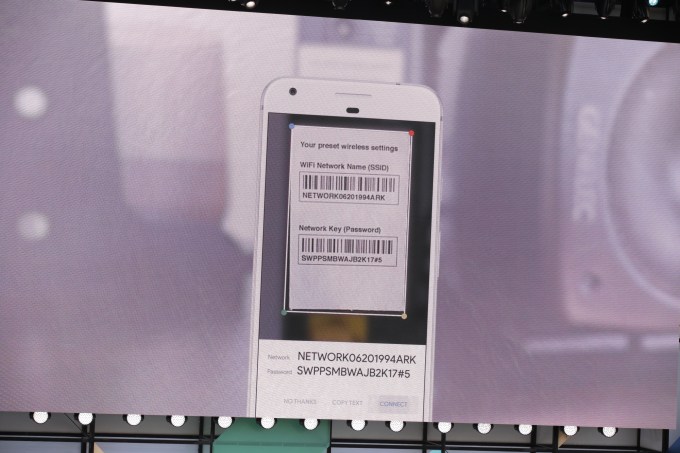
    In another example, Pichai showed how Lens could do a common task — connecting you to a home’s Wi-Fi network by snapping a photo of the sticker on the router.
    In that case, Google Lens could identify that it’s looking at a network’s name and password, then offer you the option to tap a button and connect automatically.

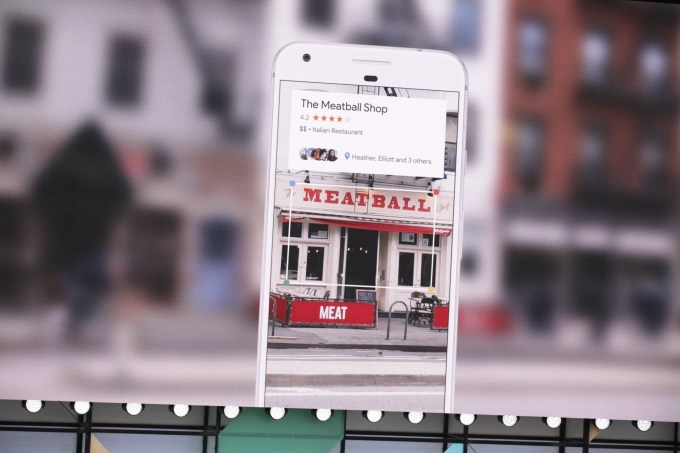
    A third example was a photo of a business’s storefront — and Google Lens could pull up the name, rating and other business listing information in a card that appeared over the photo.

    The technology basically turns the camera from a passive tool that’s capturing the world around you to one that’s allowing you to interact with what’s in your camera’s viewfinder.
    Later, during a Google Home demonstration, the company showed how Lens would be integrated into Google Assistant. Through a new button in the Assistant app, users will be able to launch Lens and insert a photo into the conversation with the Assistant, where it can process the data the photo contains.
    To show how this could work, Google’s Scott Huffman holds his camera up to a concert marquee for a Stone Foxes show and Google Assistant pulls up info on ticket sales. “Add this to my calendar,” he says — and it does.

    The integration of Lens into Assistant can also help with translations.
    Huffman demonstrates this by holding up his camera to a sign in Japanese, tapping the Lens icon and saying “What does this say?” Google Assistant then translates the text.
    In addition, Pichai showed how Google’s algorithms could more generally clean up and enhance photos — like when you’re taking a picture of your child’s baseball game through a chain-link fence, Google could remove the fence from the photo automatically. Or if you took a photo in a low-light condition, Google could automatically enhance the photo to make it less pixelated and blurry.
    The company didn’t announce when Google Lens would be available, only saying that it’s arriving “soon.”


    Thursday, May 18, 2017

    Todoist launches a deep integration with Google Calendar


    Todoist is quite a powerful task manager, but it didn’t communicate with your calendar until now. If you’re a Google Calendar user and want to check your tasks and events for tomorrow, you currently have to check both Google Calendar and Todoist. This is about to change as Todoist is launching a deep two-way integration between Todoist and Google Calendar.
    After hooking up your Todoist account with Google Calendar, your tasks are going to show up in your calendar if they have a due date. If you also entered a specific time of the day, you’ll see an event in your calendar. Recurring tasks will create multiple events.
    After that, you can click on your calendar events, edit them, move them around and everything will be synchronized back to Todoist. This way, you get a calendar view of your tasks… in your calendar. It’s also a good way to let other people add stuff to your calendar thanks to shared projects.
    If you have a ton of tasks and don’t want to clutter your calendar, you can choose to enable the integration for a project in particular. And that’s about it.
    I’m not a fan of mixing your calendar events with your tasks, but I know that many people like to handle both in the same interface. As long as you’re a Google Calendar user, Todoist is now making that easier.

    Save time with Smart Reply in Gmail

    It’s pretty easy to read your emails while you’re on the go, but responding to those emails takes effort. Smart Reply, available in Inbox by Gmail and Allo, saves you time by suggesting quick responses to your messages. The feature already drives 12 percent of replies in Inbox on mobile. And starting today, Smart Reply is coming to Gmail for Android and iOS too.

    Smart Reply suggests three responses based on the email you received:
    Once you’ve selected one, you can send it immediately or edit your response starting with the Smart Reply text. Either way, you’re saving time. 

    Smart Reply utilizes machine learning to give you better responses the more you use it. So if you're more of a “thanks!” than a “thanks.” person, we'll suggest the response that's, well, more you! If you want to learn about the smarts behind Smart Reply, check out the Google Research Blog.

    Smart Reply will roll out globally on Android and iOS in English first, and Spanish will follow in the coming weeks. Stay tuned for more languages coming soon!

    Google’s Keep note-taking app is getting a new feature courtesy of Android 14 that’s a huge time-saver, even if Samsung got there first

      There’s a certain balance that needs to be achieved with lock screen functionality. You can’t give away too much because of, well, securit...